Learn the ways to start a new song: from scratch, from a template, import from image or audio, or with AI scaffolding.
When you create a new song, the editor offers multiple ways to get going fast depending on your workflow. This page shows the available start options and when to choose each.
Use a ready-made structure to jump straight into writing. This is great for common forms like Verse/Chorus/Bridge.
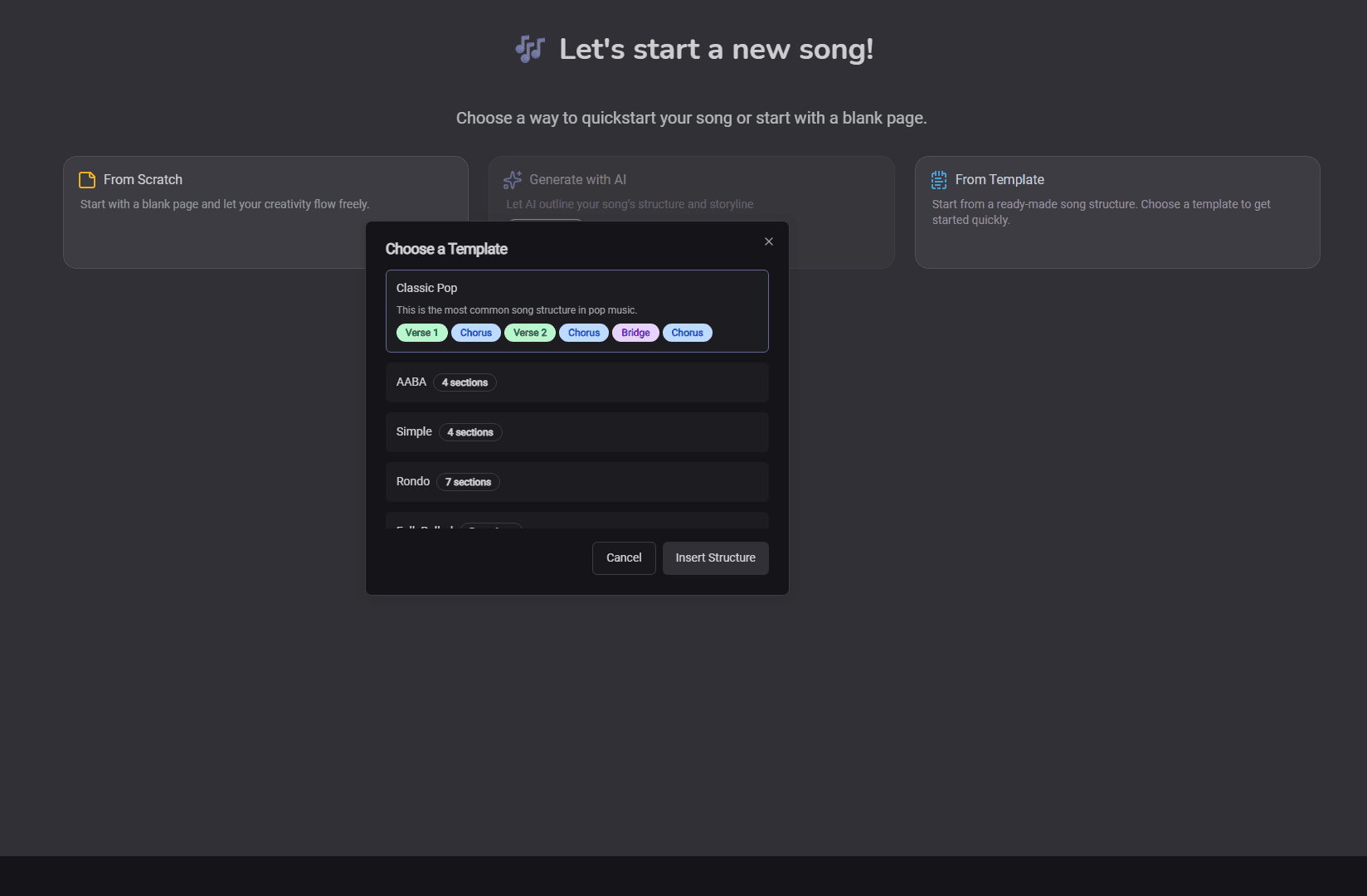
Template Chooser Dialog
Click “From Template” on the song start screen.
The template chooser dialog opens. Pick a template or use the default selection. Click “Insert Structure”. Your song is populated with pre-made sections you can edit and rearrange.
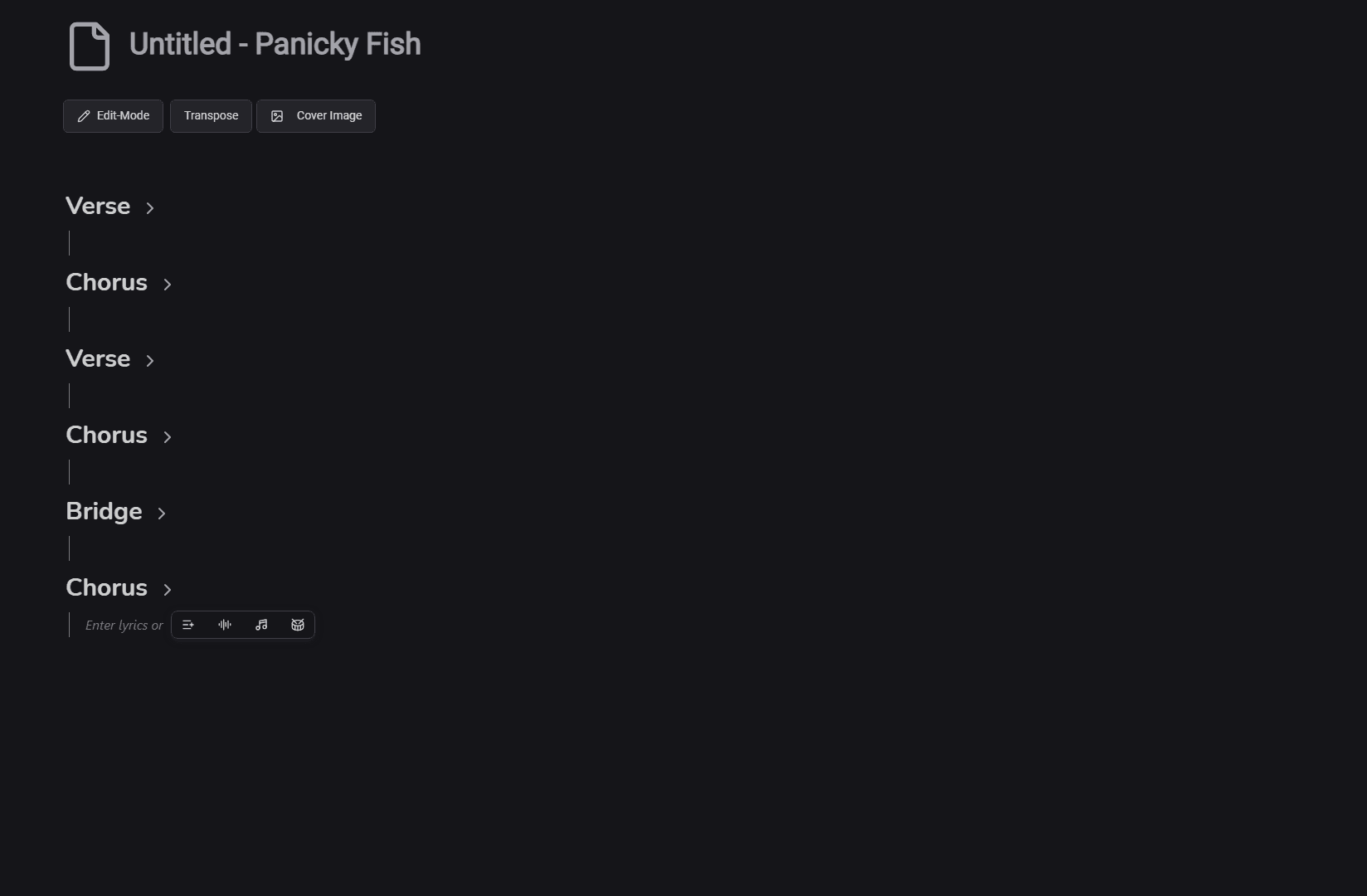
Song after inserting template
The final song structure
After inserting, you’ll see sections like Verse, Chorus, and Bridge already added to your song:
If your space has a Premium plan, you can use AI to generate an initial song structure.
This is helpful for brainstorming forms, section counts, or a quick starting point around a topic.
Based on your input (topic, mood, genre), the AI suggests a matching song structure and a whole storyline of the song split into sections.
The storyline will then help you write lyrics and music for each section.
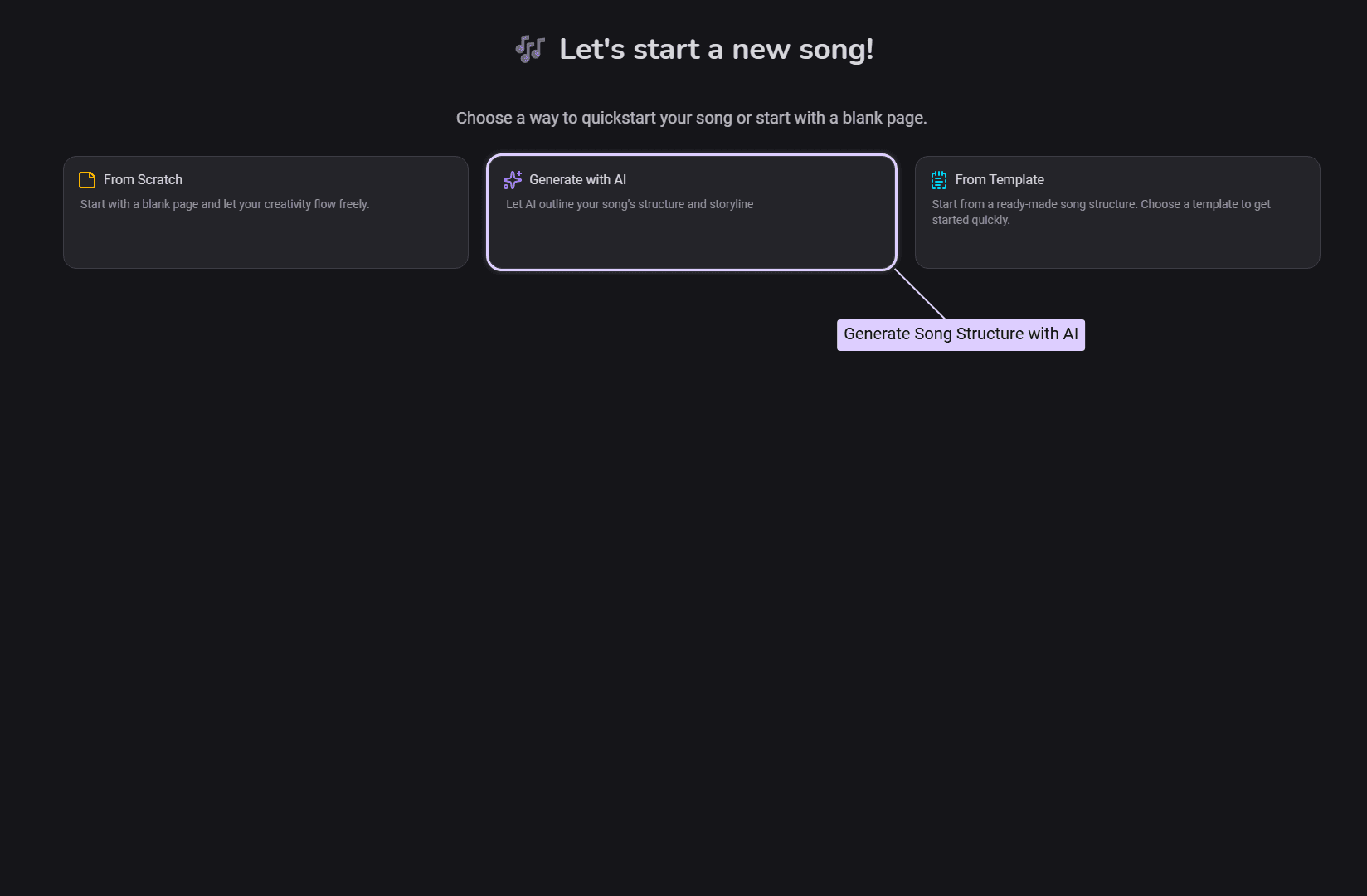
AI generate button in the editor
Click “Generate with AI”
Click the “Generate with AI” button on the start screen.
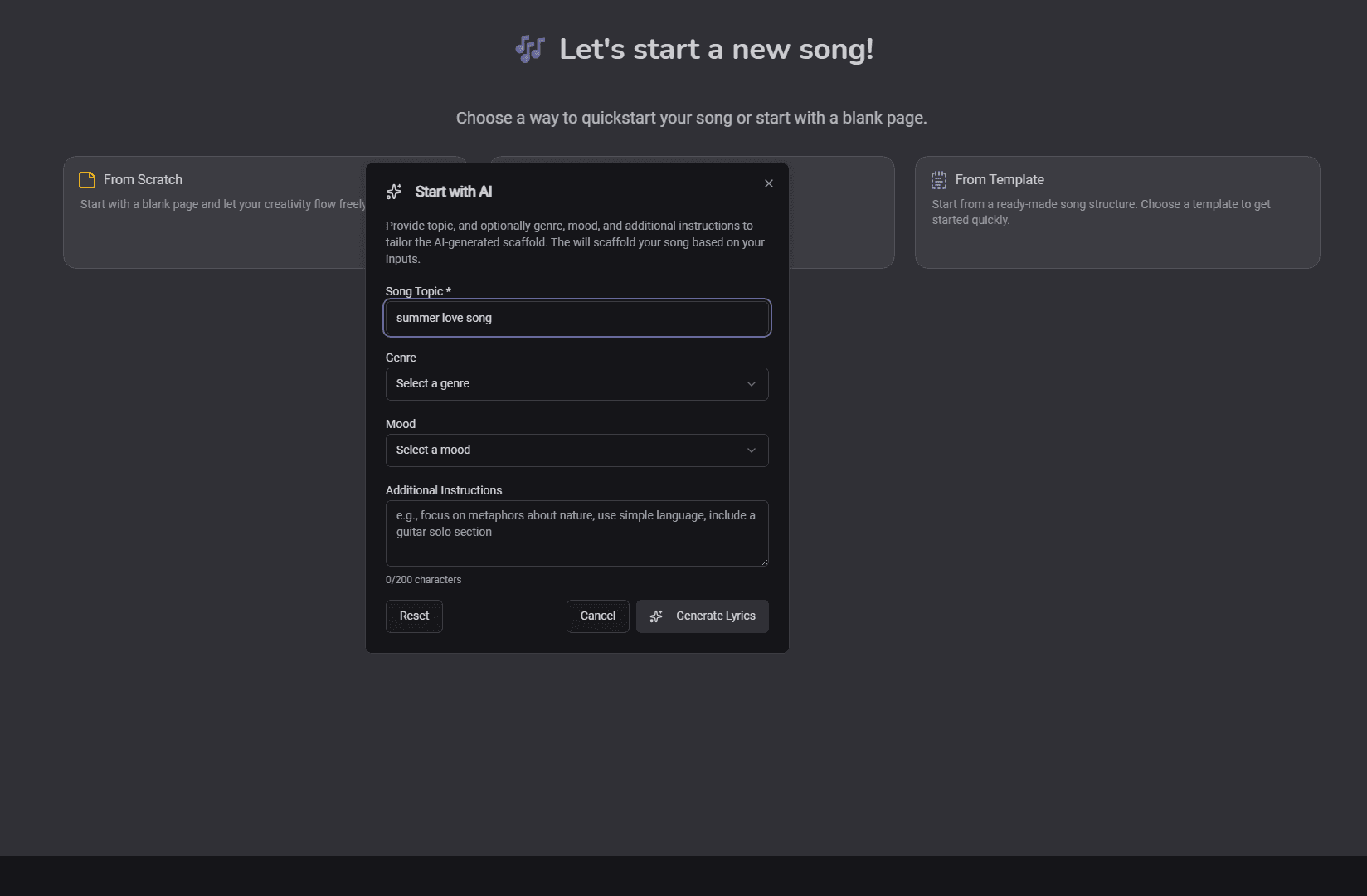
AI generation dialog
Describe what you want
In the dialog, enter a topic (e.g., “summer love song”) and optionally genre, mood, or additional instructions for the AI.
If you want a certain language, specify this in the additional instructions textbox.
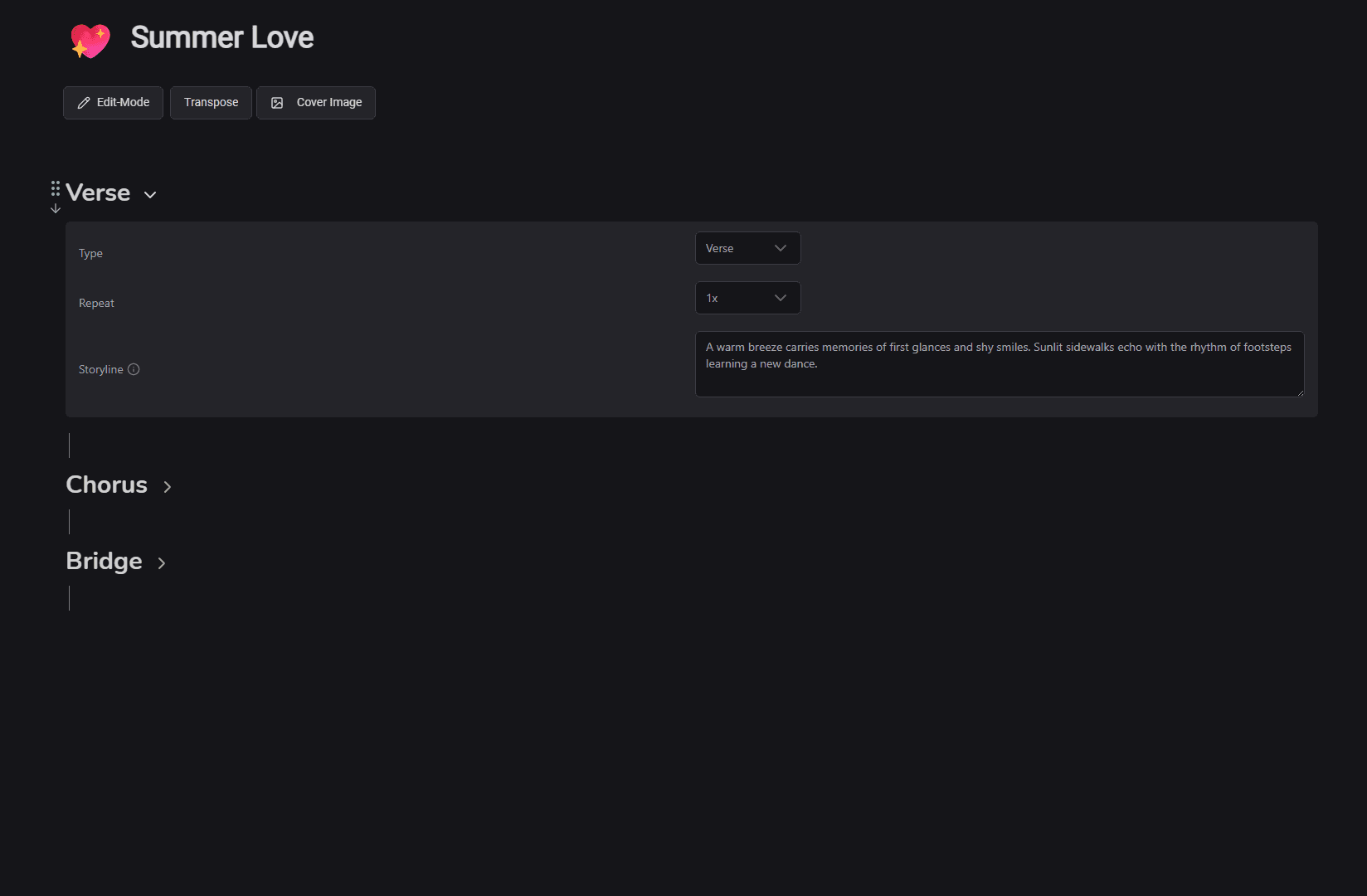
Section properties after AI scaffold
Generate and refine
Click “Generate”. After a brief wait, sections appear in your song. Edit, move, or remove them like any other section. Open section properties to tweak repeats, names, and more.
Turn a photo of handwritten or printed lyrics/chords into editable song sections.
Perfect for capturing ideas from your notebook or a rehearsal whiteboard.
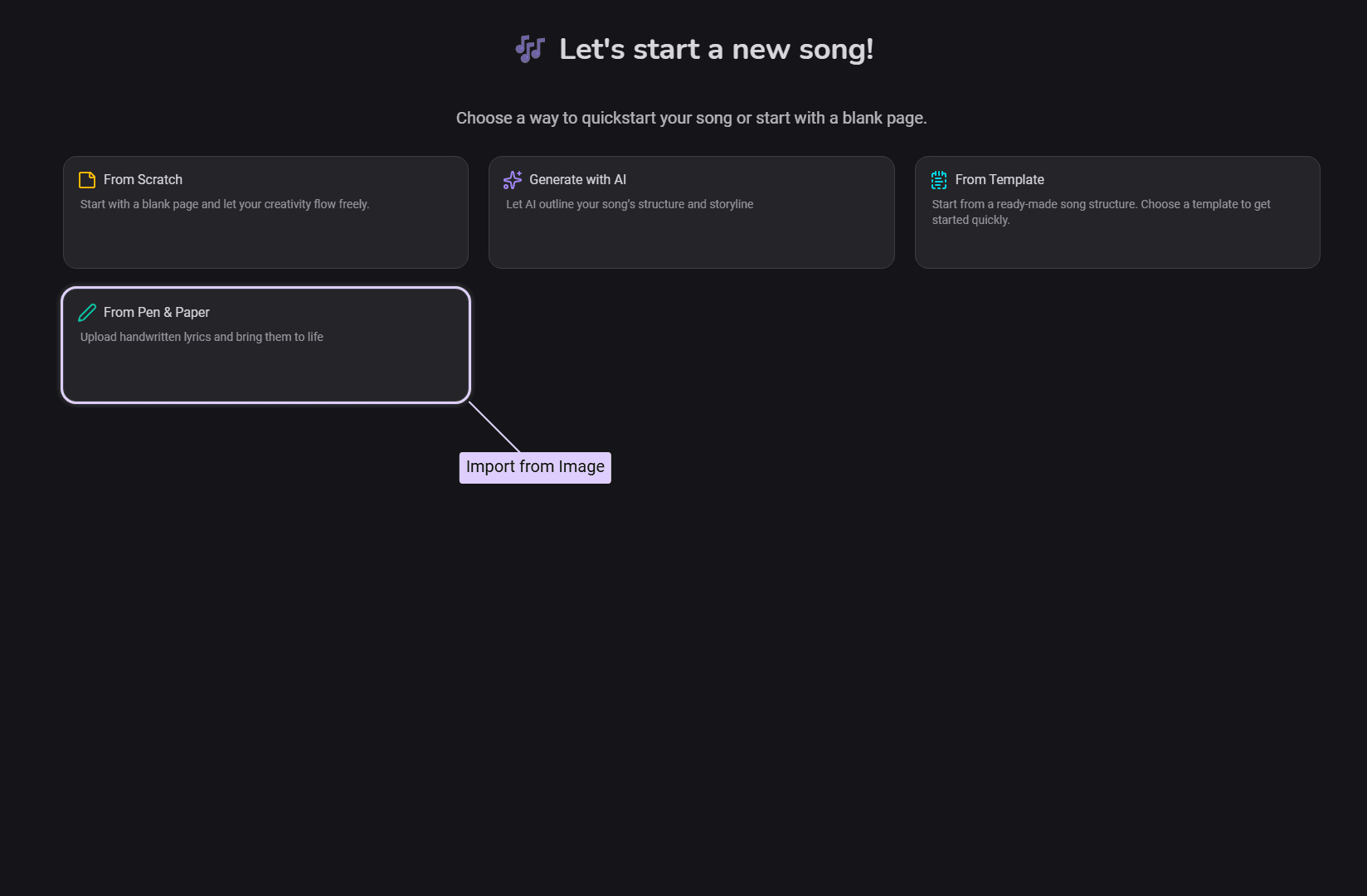
Import from image button on the start screen
Click “From Pen & Paper”
Click the “From Pen & Paper” button on the song start screen.
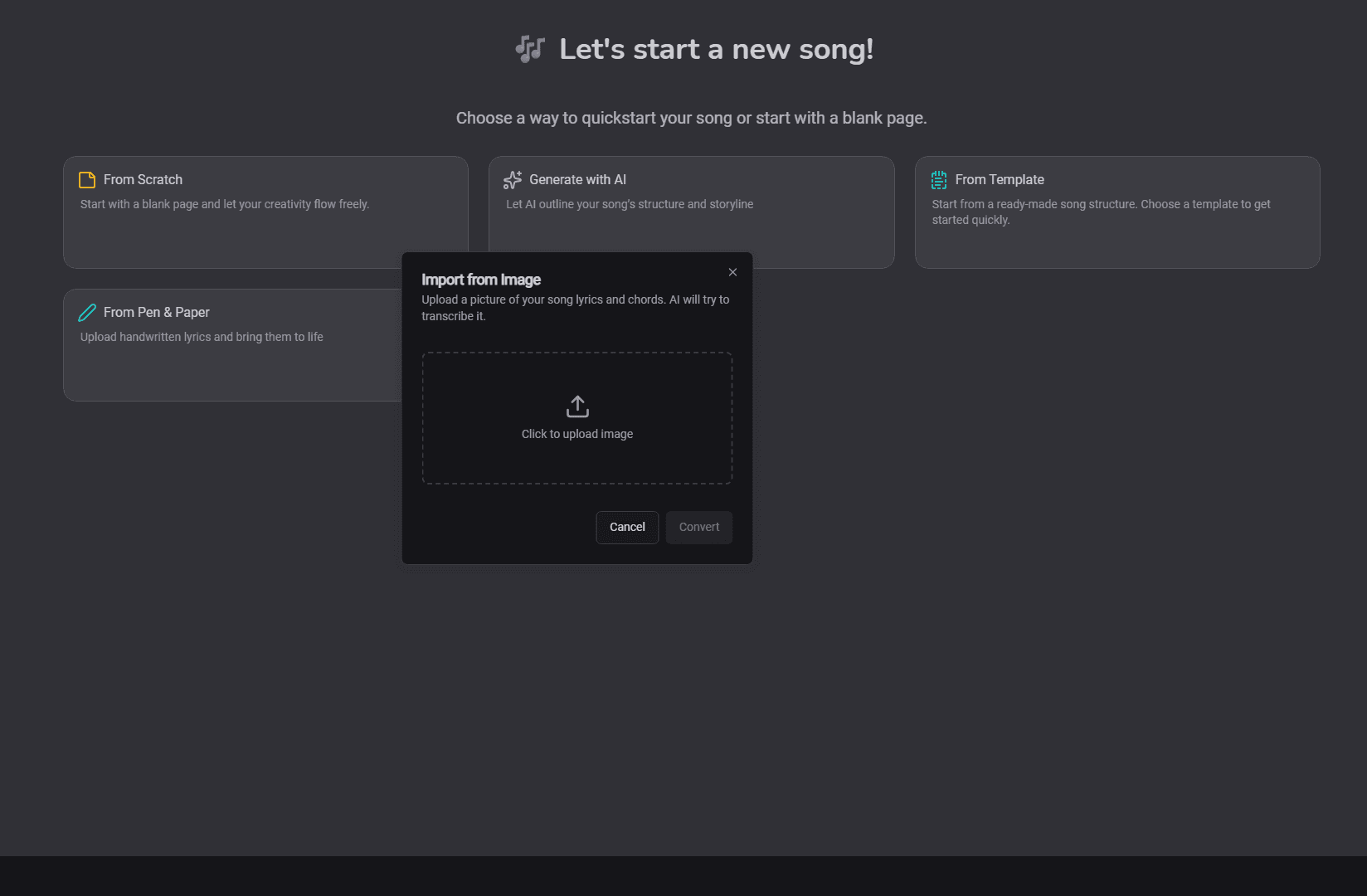
Import from image dialog
Upload your image
The import dialog opens. Upload a clear photo of your handwritten or printed notes.
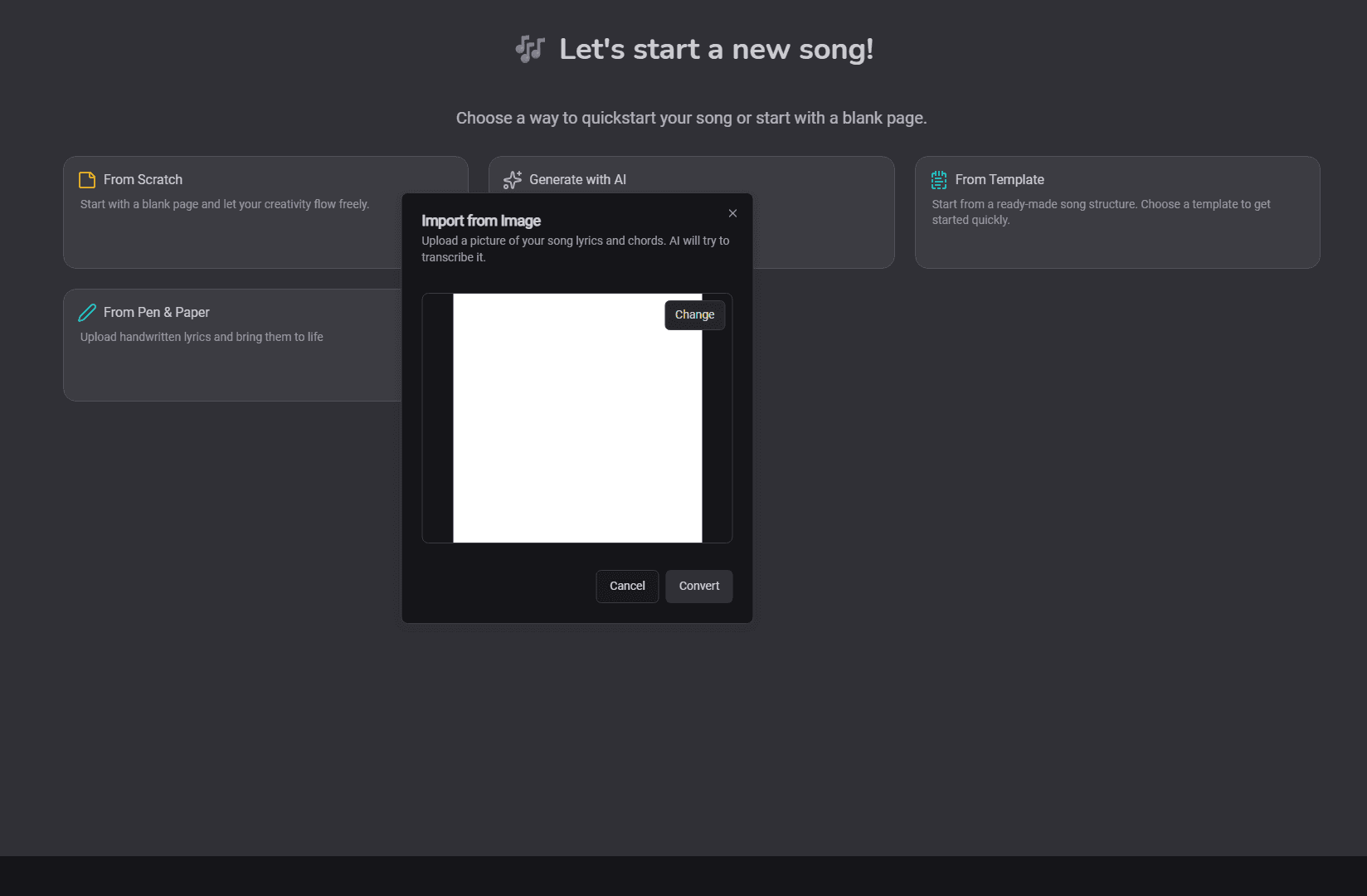
Selected image preview before conversion
Preview before converting
After selecting an image, review the preview to ensure everything is visible.
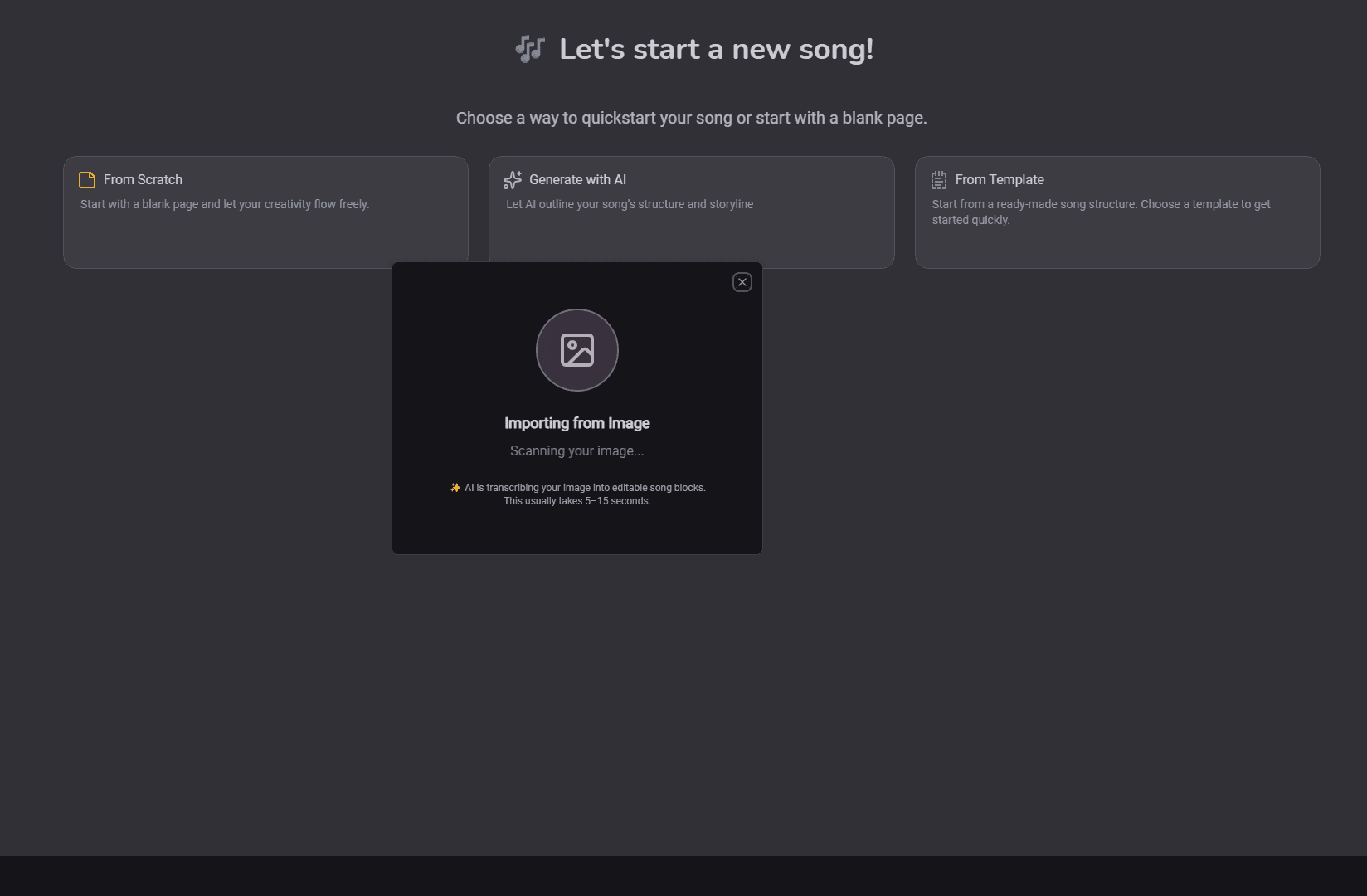
Image-to-Song loading state
Convert with AI
Click “Convert”. The AI scans the image, recognizes text and chords, and builds the song structure.
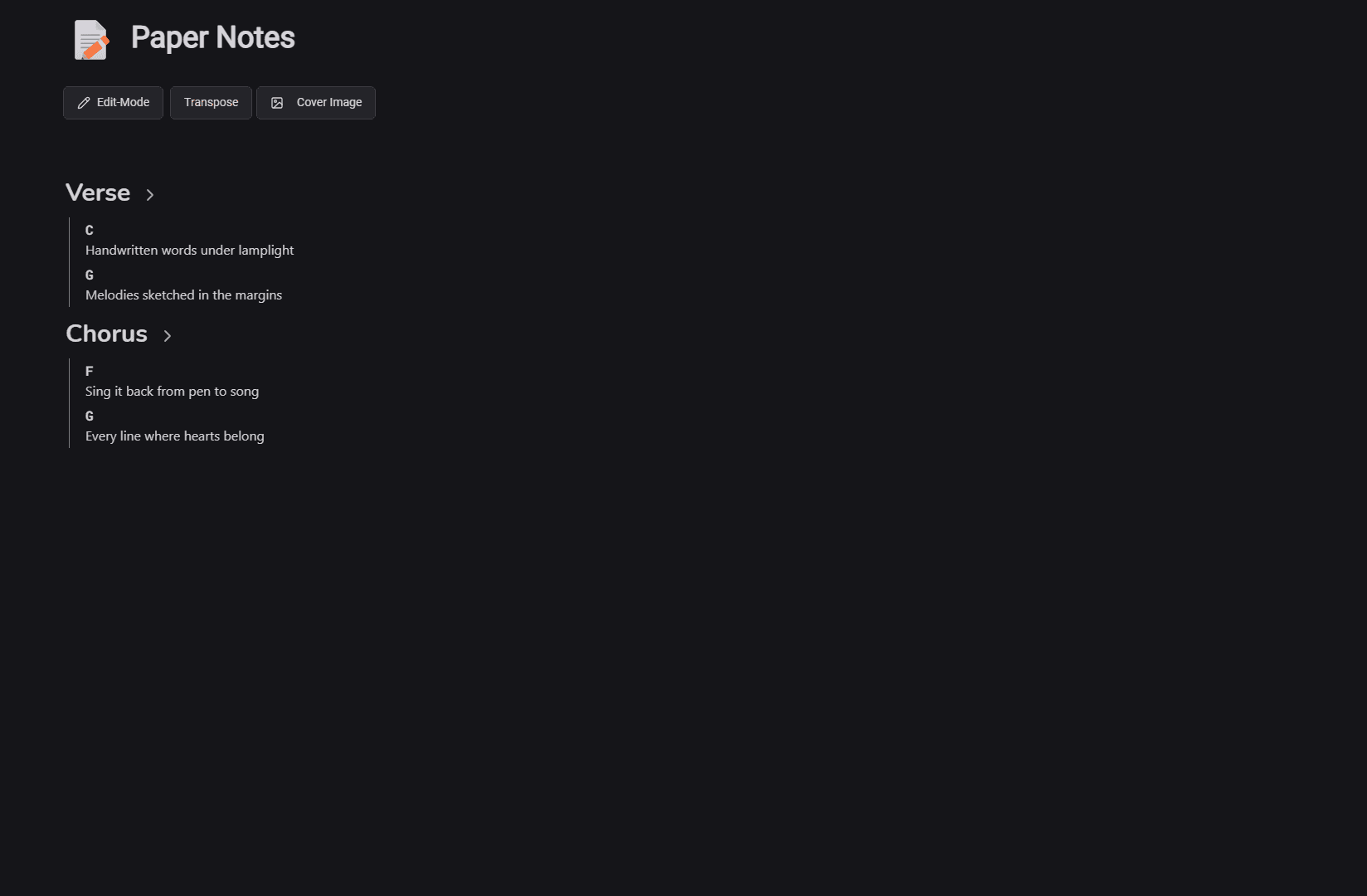
Song after importing from image
Review the result
When finished, your editor is populated with sections and lines you can immediately edit.
Transcribe a short recording into editable lyrics and chords. Ideal for voice memos or quick demos.
Import from audio button on the start screen
Click “From Recording”
Click the “From Recording” button on the song start screen.
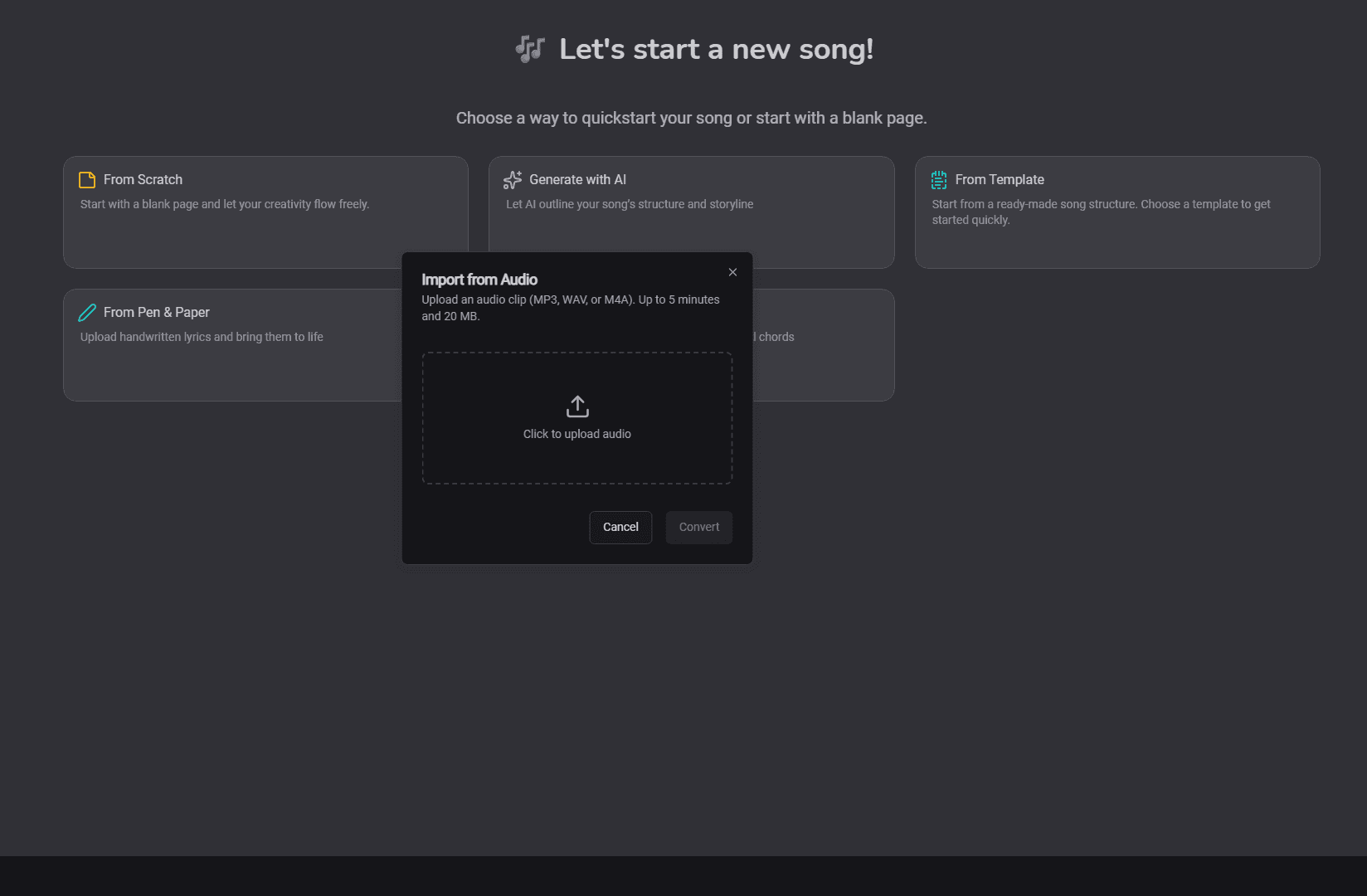
Import from audio dialog
Upload your audio
The import dialog opens. Upload MP3, WAV, or M4A (up to ~5 minutes, 20 MB).
Selected audio with waveform and optional hints
Preview waveform and add hints
A waveform preview lets you quickly scrub and check the recording. You can add optional hints (e.g., key, chord progression, capo). This helps improve transcription quality.
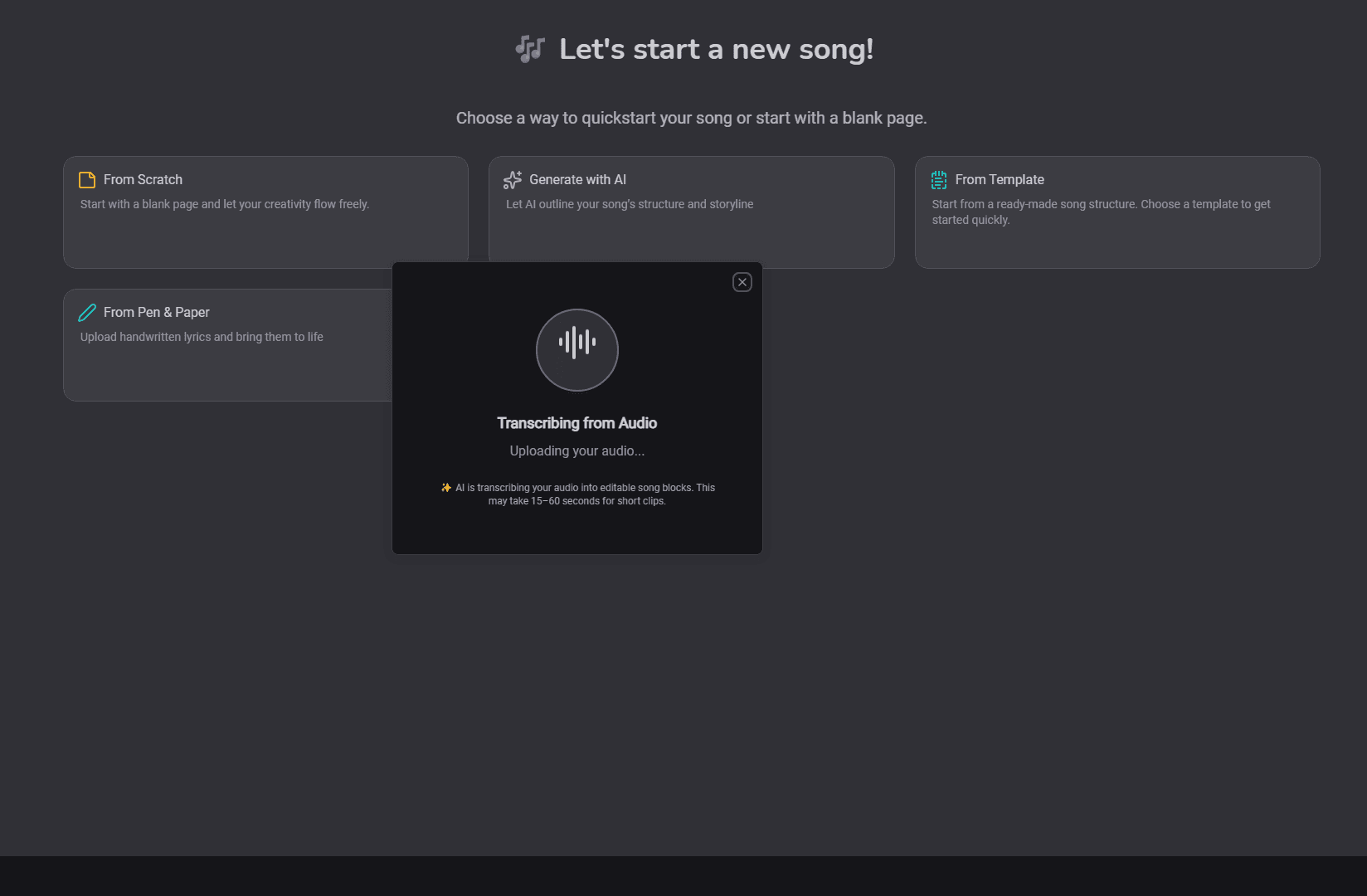
Audio-to-Song loading state
Convert
Click “Convert”. The AI listens and builds sections with lyrics and chords. Your original recording is also saved and added as a playable audio block at the top of the song.
Song after importing from audio
Review the result
When finished, your editor is populated with sections and lines you can immediately edit. At the very top, you’ll see an audio player for your original recording so you can reference it while editing.
Which option should I pick?
From Scratch: You want total manual control from the first step.
From Template: You like a familiar structure and want to write right away.
Import From Image: You have lyrics/chords on paper or a photo and want to convert them into editable blocks.
Generate with AI: You want a quick, suggestive starting point tailored to a topic, mood, or genre.
Import From Audio: You have a voice memo or demo and want an automatic transcription into sections with lyrics/chords, plus the original recording embedded for easy playback.